MPP Viewer – Open and View Microsoft Project Files

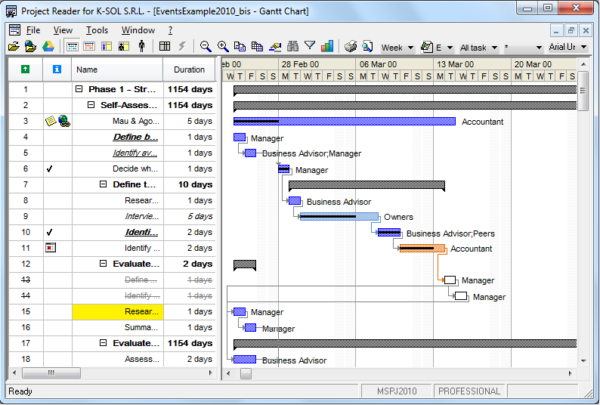
MPP Viewer preview showing Microsoft Project file

MPP Viewer is a lightweight tool to open, view, export, and print Microsoft Project (MPP) files. Compatible with Project 2016/2007/2003, offering hierarchical task views, resource tracking, and more.

Project Management

Project management means planning work, completing it on time, and giving the team clear direction. MPP files make this planning easier by organizing tasks, schedules, and responsibilities in one place.

1) Planning & Timeline

Every project is divided into clear steps such as tasks, start dates, end dates, and deadlines. This helps create a clear roadmap that shows the order of work and how much time each task will take.

2) Task Tracking & Progress

The real challenge in any project is tracking progress. This includes knowing which tasks are completed, which are pending, and where delays are happening. Regular tracking helps identify issues early and keeps the project on the right path.

3) Resources & Team Management

Properly assigning team members and resources such as time, budget, and tools is essential for a successful project. Good resource planning keeps workloads balanced and helps the project move forward smoothly without unnecessary delays.

Project management planning illustration

Software Tools (What They Do & Why They Matter)

Software tools help you work faster, stay organized, and reduce errors. Tasks like project planning, file viewing, converting, exporting, and reporting become much simpler when the right tools are used.

1) Viewer Tools

The main purpose of viewer tools is to open and read files without installing heavy software. For example, an MPP viewer allows you to quickly review project plans, including tasks, dates, and the Gantt chart view, without editing the original file.

2) Converter Tools

Converter tools change files into other formats, such as MPP to PDF or Excel. This makes sharing easier and allows non-technical users to view and understand the data without needing specialized software.

3) Export & Print Tools

Export tools help you export project data, while print options make reports clear and professional. You can generate schedules, task lists, and resource summaries in formats that are easy to share and present.

4) Productivity Tools

Productivity tools help streamline daily work, such as note-taking, calendars, task apps, and time tracking. These tools improve focus and make it easier to meet deadlines consistently.

5) Collaboration Tools

In team projects, collaboration tools are very important. They allow teams to share updates, add comments, and track files in one place. This keeps communication clear and reduces confusion across the team.
Software tools dashboard illustration
File viewer and converter illustration

Guides (Step-by-Step Help for Beginners)

These guides are written in simple English to help you work with MPP files and project plans without confusion. Each guide focuses on one problem and shows the quickest, safest way to solve it.

1) How to Open an MPP File

An MPP file is a Microsoft Project plan. If you don’t have Microsoft Project installed, you can still open it using a viewer or an alternative tool. In this guide, you learn what to check first (file version, file size, and compatibility), and how to open the file safely without breaking the layout.

2) How to Read a Project Plan (Tasks, Dates, and Dependencies)

Project plans can look complex, but they follow a simple structure. Tasks are listed in order, dates show when work starts and ends, and dependencies explain which tasks must happen first. This guide teaches you how to scan a plan quickly, spot critical steps, and understand what actually controls the timeline.

3) How to Export MPP to PDF or Excel

Exporting is useful when you want to share a plan with someone who doesn’t use project software. PDF is best for viewing and printing. Excel is better for editing lists and reporting. This guide explains the differences, what data may change during export, and how to keep your schedule readable.

4) How to Print a Clean Project Schedule

Printing a project plan is not just “press print.” You need the right zoom, page width, and date range so the schedule doesn’t get cut off. This guide shows how to choose a clean view, include only the necessary columns, and print a report that looks professional.

5) Common MPP Problems and Quick Fixes

Sometimes an MPP file won’t open, looks corrupted, or shows missing data. The reason is often compatibility, incomplete downloads, or unsupported features. This guide lists the most common issues and quick fixes, so you can troubleshoot in minutes instead of wasting hours.

Need a Specific Guide?

Tell us what you want to do (open, view, export, convert, or print). We’ll publish a simple, step-by-step guide that matches your exact problem.

Request a Guide

Our Latest Blogs

Read our most recent articles for tips and updates !

FAQs

Common questions about MPP files, viewing, exporting, and project plans.

An MPP file is a Microsoft Project plan file. It stores tasks, dates, dependencies, and resource information for a project.

Yes. You can use an MPP viewer or alternative project tools that support importing or reading MPP files.

It depends on the tool/version. Some viewers are free, while others offer paid features like advanced export and reporting.

MPP files can be created by different Project versions. Compatibility depends on how old/new the file format is and what features were used.

Most viewer tools provide an Export or Print option. Choose PDF output and adjust page layout to keep the schedule readable.

Yes, many tools can export task lists and tables to Excel/CSV. Note that visual layouts (like Gantt bars) may not transfer perfectly.

Different tools may display columns, calendars, fonts, or views differently. Also, some Project-specific features may not be fully supported.

Dependencies are links between tasks. They show which tasks must be finished before others can start, helping control the project timeline.

For sensitive projects, offline tools are safer. If you use online tools, avoid uploading confidential plans and use trusted services.

Choose a Gantt or timeline view, reduce unnecessary columns, set the correct date range, and adjust scaling so it fits the page properly.